
AI Photo Editor — Restyle, Reimagine, Transform
Upload a photo and change exactly what you want: restyle it, swap the background, change the season, or rewrite the whole scene. Surgical 'change just this one thing' edits and full rewrites need different models, so we put both in one editor: Nano Banana 2 for precise changes, Z-Image Turbo for big rewrites. Start free with signup credits, no watermark.
Click to upload an image
or drag and drop • Max 10MB
Image resolution quality
Advanced Settings▼
Seed for reproducible results
File format for the generated image
Est. time: up to 25 sec
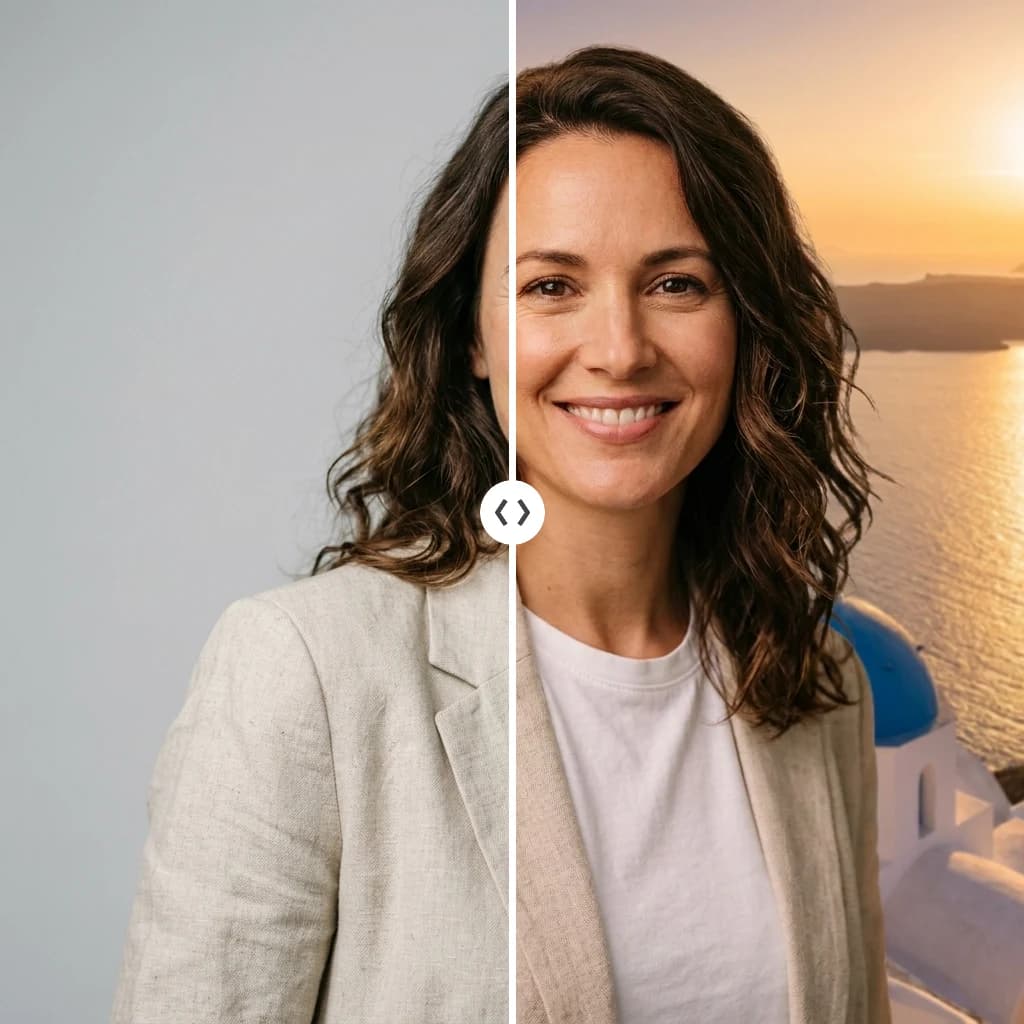
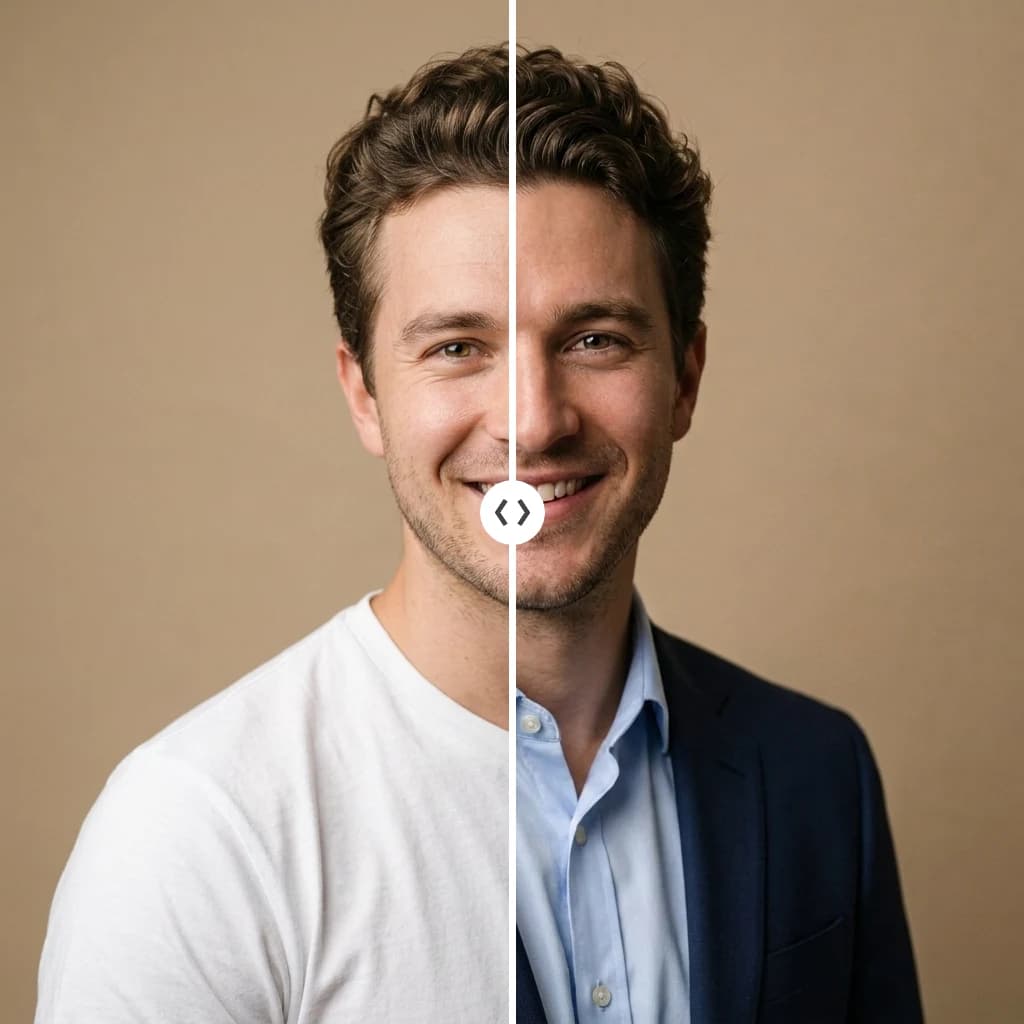
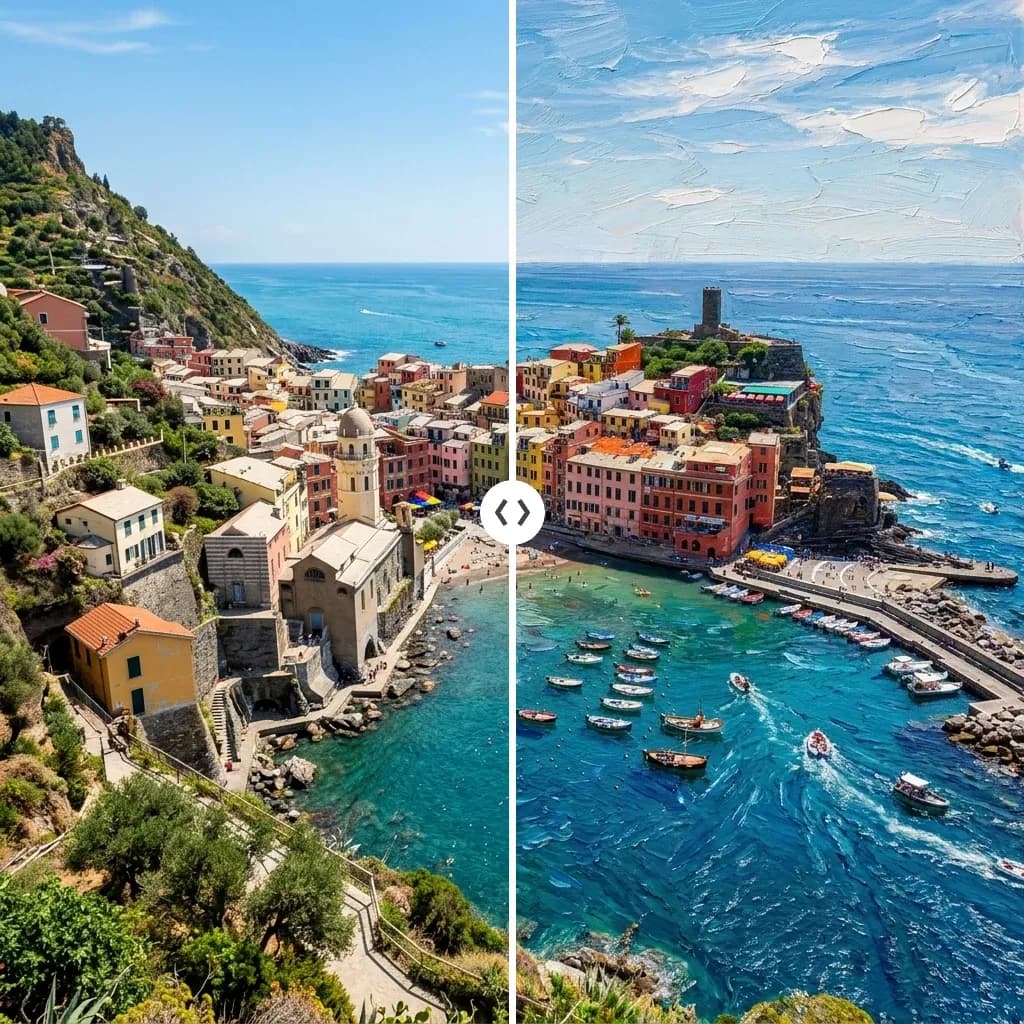
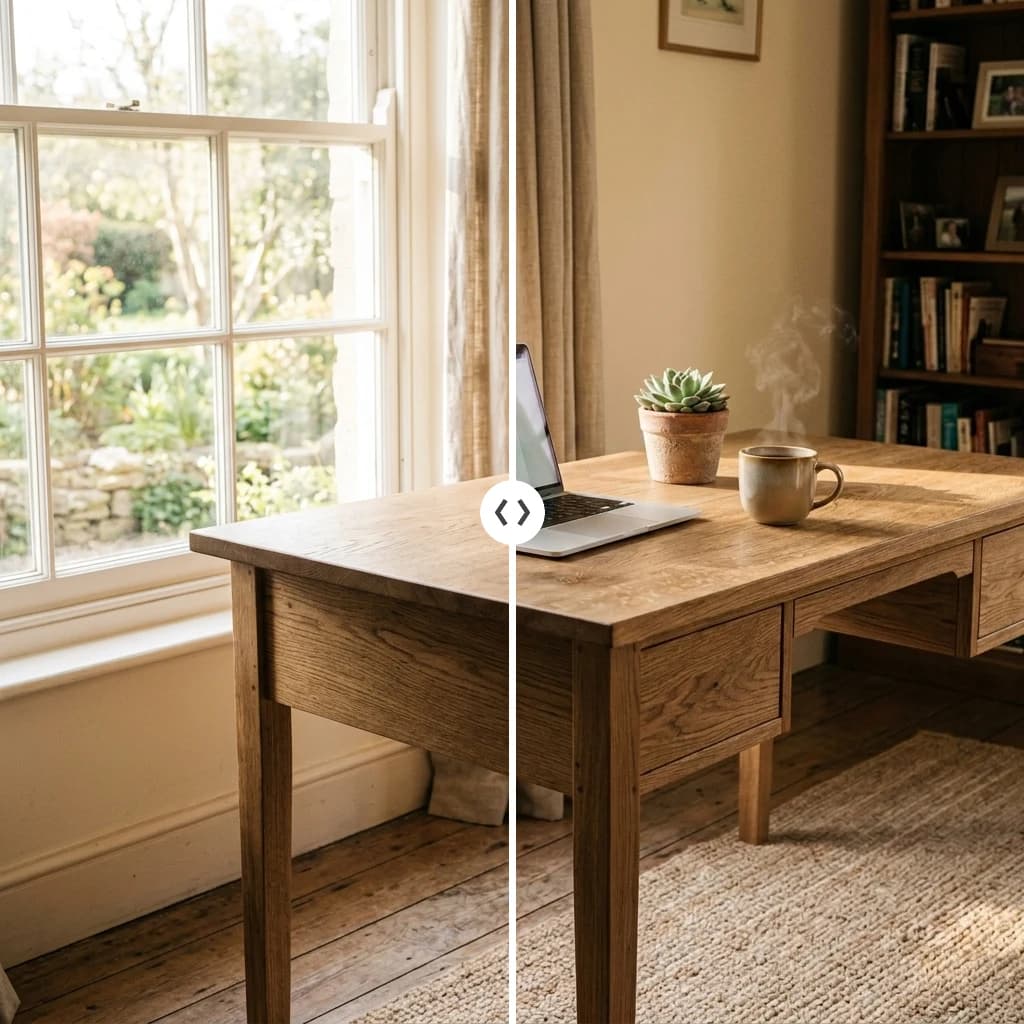
Example results — your generations will appear here.
An AI Image Editor with Prompt: What You Can Do
Each model in the lineup is stronger at some edit types than others. Pick the category closest to what you're trying to accomplish.
Instruction-based edits
Tell the AI what to change: 'replace the denim jacket with a pink dress', 'make the season winter', 'add neon lighting'. Nano Banana 2 is built for this. It preserves the original subject's identity while making targeted changes.
Style transfer
Turn a photo into a watercolor painting, anime drawing, oil portrait, or 3D render. Higher strength values give bolder style changes; lower values keep the original closer. Works on every model: Z-Image Turbo is fastest, GPT Image 2 is highest quality.
Background swap
Drop your subject into a different environment: beach, studio, mountains, cyberpunk city. Nano Banana 2 is best for keeping the subject identical; Z-Image Turbo (strength 0.85+) for atmospheric rewrites.
Restoration & restyling
Modernize old photos, enhance details, change color grading, or generate alternative versions of a finished design. Use Nano Banana 2 with low strength for subtle improvements, Seedream 4.5 for photorealistic refinement.
Multi-image composition
Seedream 4.5 accepts up to 10 reference images, useful for style blending (combine the lighting from one photo with the subject of another) and reference-driven generation.
Identity preservation
Generate variations of the same person, character, or product without losing their distinct look. Nano Banana 2 is the strongest at this: same face, same outfit, same room, just different pose / scene / lighting.
Examples
Before and After: Image-to-Image Examples
Real before-and-after edits. Each card shows the original image on the left and the AI-edited result on the right, using the prompt below it.
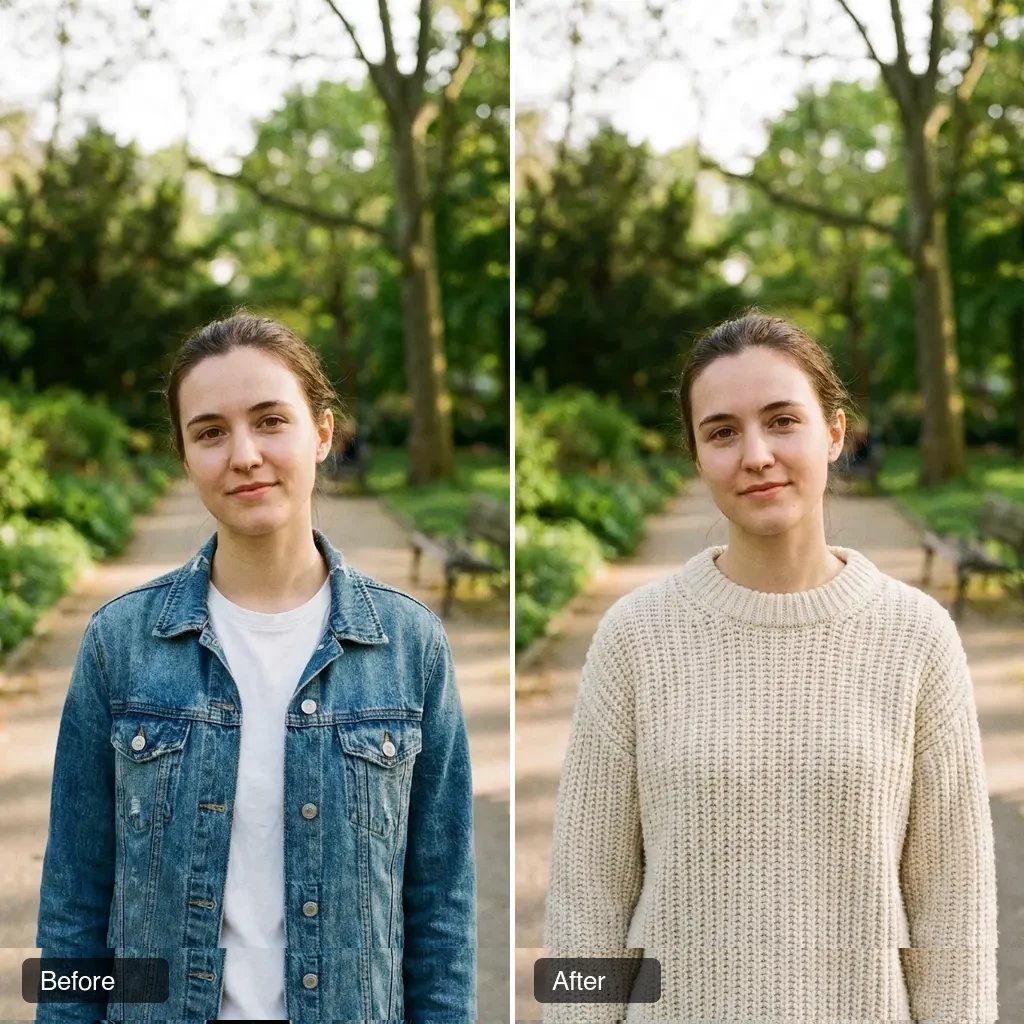
Outfit swap (Nano Banana 2)
Replace the denim jacket with a cream-colored knit sweater, keep the same face, pose, and background
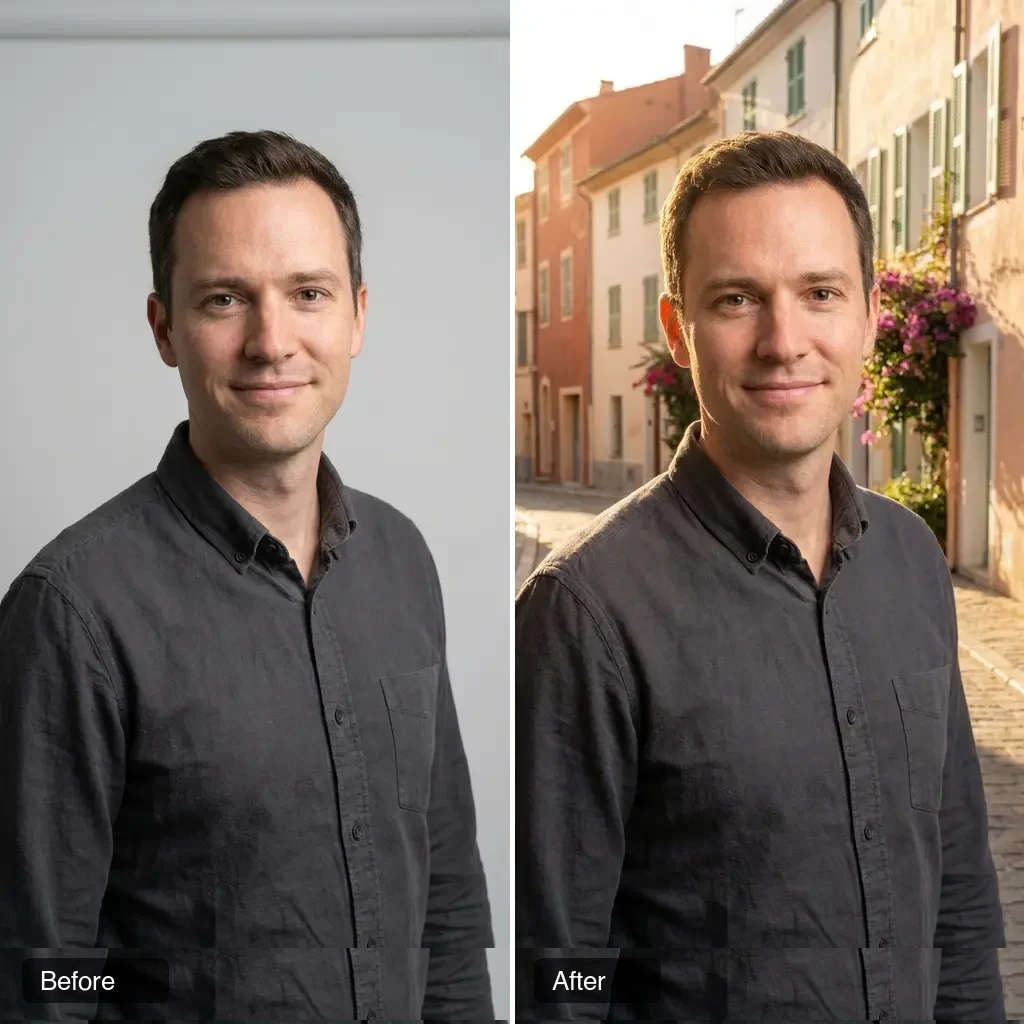
Background swap (Nano Banana 2)
Replace the studio backdrop with a sun-drenched Mediterranean street, keep the subject unchanged
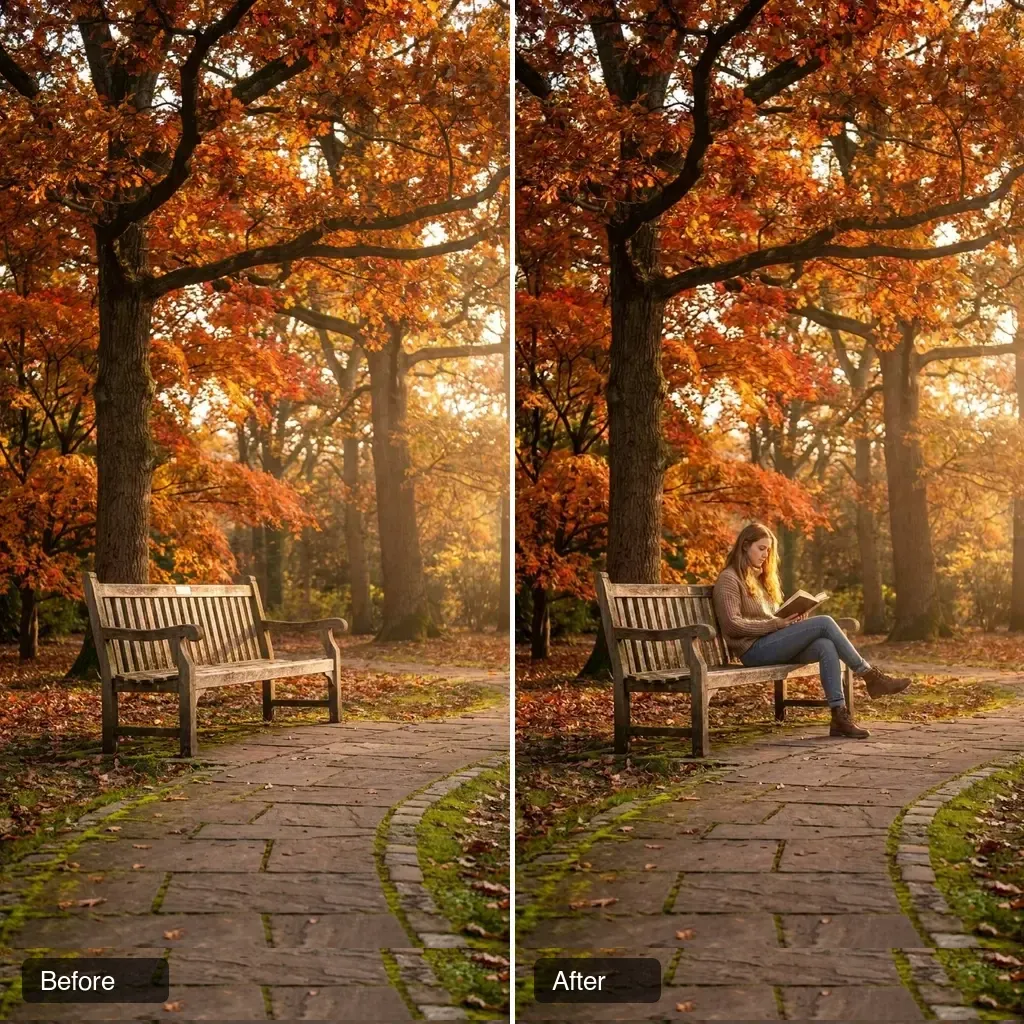
Add a person to the scene
Add a person sitting on the bench reading a book, lighting matched to the scene
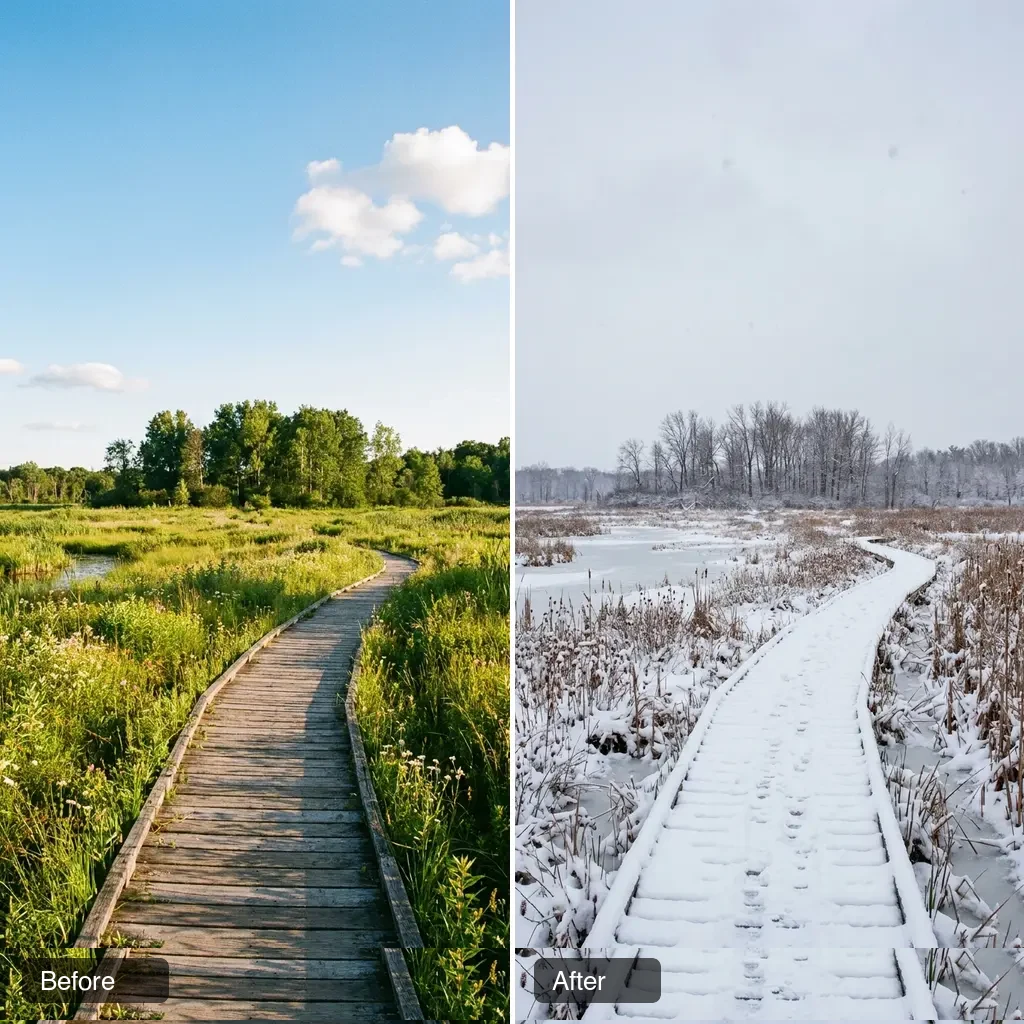
Season change
Change this summer scene to deep winter: snow-covered path, bare trees, soft overcast light
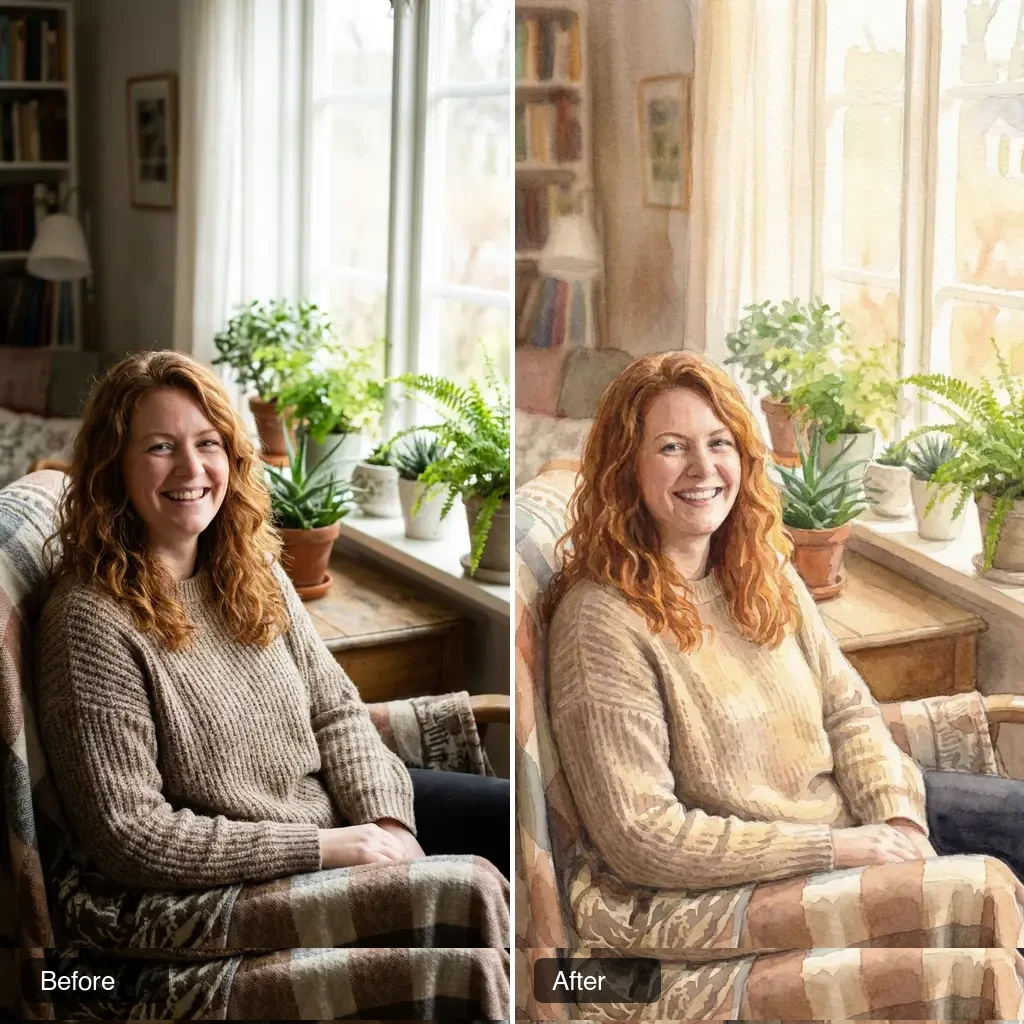
Photo → Watercolor
Turn this photo into a soft watercolor painting with visible brush strokes and warm tones
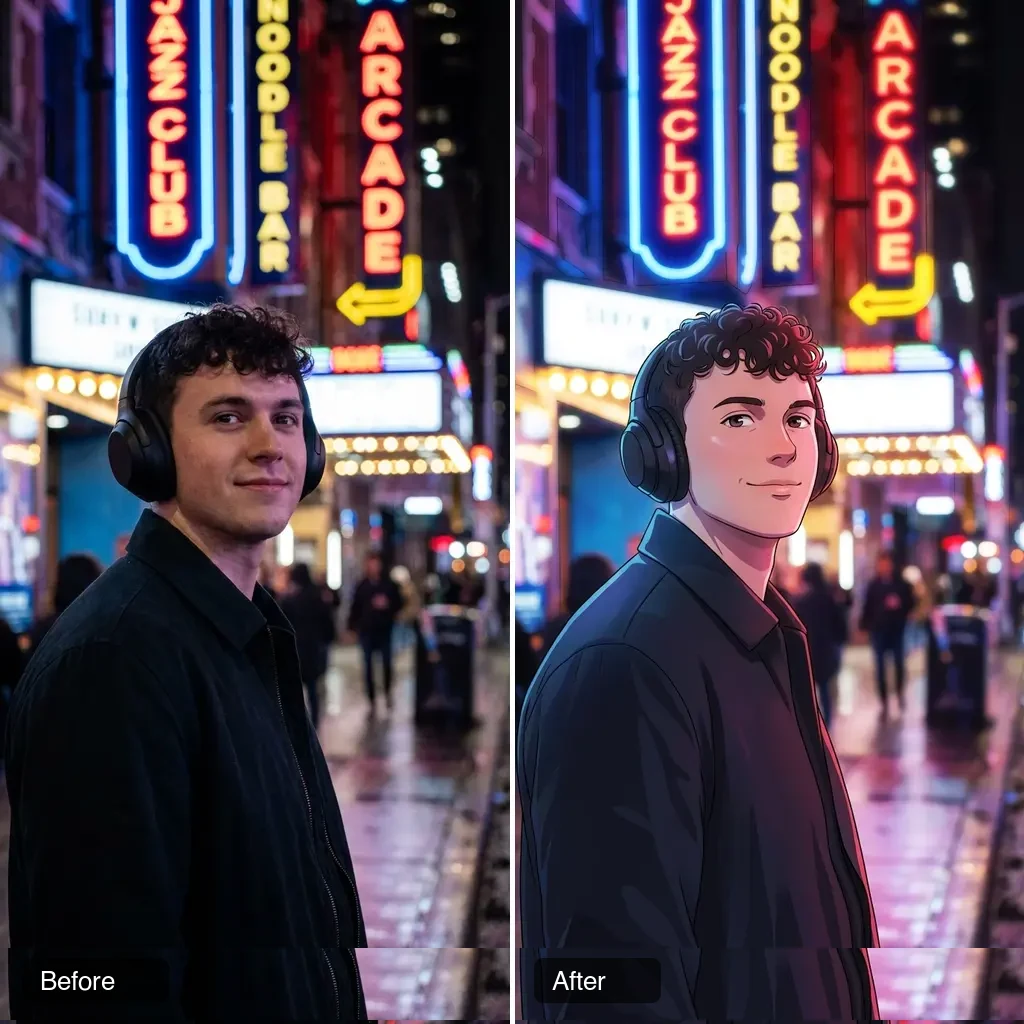
Photo → Anime
Transform this photo into anime key visual style, soft cel-shading, vibrant colors
Image to Image AI Generator: Best Model for Each Edit
Each model approaches image-to-image differently. Pick based on what you're trying to do, not just popularity.
'Change just this one thing' → Nano Banana 2
Instruction-following model. Tell it 'replace X with Y' or 'add Z' in plain English and it will execute that specific change while leaving everything else untouched. Best identity preservation in the lineup. Default model for image-to-image on this site.
Learn more →'Reimagine the whole scene' → Z-Image Turbo
Diffusion-based, very fast. With strength 0.7+, rewrites the scene substantially while keeping the rough composition. Best for style transfer, atmospheric changes, and bulk experimentation. For one-element surgical edits, Nano Banana 2 is the better fit.
Learn more →'Professional final output' → GPT Image 2
Highest quality across the lineup. Slowest and most expensive. Best for final deliverables when the result needs to be polished: campaign images, hero shots, marketing assets. Three quality tiers let you balance cost vs. polish.
Learn more →'Photorealistic restyling' → Seedream 4.5
Photoreal output with strong subject consistency. Great for portrait editing, lifestyle product shots, and food photography refinement. Accepts up to 10 reference images for style blending. Balanced cost between Z-Image Turbo and GPT Image 2.
Learn more →'Follow my brief exactly' → Grok Imagine 2.0
xAI's Arena #2 editor. Executes detailed instructions precisely — long, detailed briefs, up to 3 reference images, and typography that survives the edit. Best for design-oriented edits: swap a background, restyle a poster, recolor a product while its label stays readable.
Learn more →'Rebuild it as an infographic' → Seedream 5.0 Pro
The reasoning flagship. Feed it a reference and ask for a structured re-composition — annotated diagrams, comparison layouts, posters with native text in 14 languages. Slower than the others, but layout instructions actually hold.
Learn more →Tips for Better Image-to-Image Results
Habits that consistently improve image-to-image output. These come from real testing across every model.
1. Match the model to your goal
Don't use Z-Image Turbo for 'change the jacket color while keeping everything else'. That's Nano Banana 2's job. Z-Image Turbo will rewrite the whole scene because it's a diffusion model, not an instruction model. Pick the right tool. See the section above.
2. Describe the target, not the change (for diffusion models)
For Z-Image Turbo and Seedream 4.5, write the prompt as if you're describing the FINAL image you want, not the edit you want to apply. 'a woman in a pink dress driving a car' beats 'change the jacket to a pink dress'. For Nano Banana 2, instruction-style is fine.
3. Tune strength, then lock the seed
Two settings do the heavy lifting on Z-Image Turbo. Strength controls how much changes: 0.3 = subtle color/light tweaks, 0.7 (default) = clear rewrite with composition kept, 0.85+ = aggressive rewrite that may replace subjects. Once you're close, lock the seed in Advanced Settings and change one word at a time — reproducible refinement instead of re-rolling the dice.
4. Use high-quality source images
The model works with what you give it. Blurry, low-resolution, or heavily compressed source images limit how good the output can be. Upload the highest quality version of your photo (under 10MB). PNG/JPEG/WebP all work.
Frequently asked questions about image-to-image editing
Common questions about AI image-to-image, how each model handles edits, and what's possible vs. what isn't.
What is AI image to image?
AI image to image takes an existing photo or image as input and produces a new version based on your prompt. It can change the style, the subject, the background, or any specific element you describe. Unlike text-to-image which starts from scratch, image-to-image preserves elements of your source. Exactly how much is preserved depends on the model and the strength setting.
Which model is best for image to image?
It depends on your task. Use Nano Banana 2 when you want to change one specific thing while keeping the rest of the photo untouched. This is what it's designed for. Use Z-Image Turbo when you want a faster, full-scene rewrite where everything changes. GPT Image 2 produces the highest quality but takes much longer. Seedream 4.5 is the photorealistic middle-ground; Grok Imagine 2.0 follows detailed design briefs and keeps typography readable; Seedream 5.0 Pro rebuilds a reference into structured layouts and infographics.
What image formats and sizes can I upload?
We accept JPEG, JPG, PNG, and WebP up to 10MB. Larger images are auto-resized before generation. There's no minimum resolution but higher-quality sources produce higher-quality outputs.
Why didn't my image change much?
Most likely the strength setting is too low (for Z-Image Turbo, default is 0.7, try 0.85). Another cause: you wrote an instruction-style prompt ('change X to Y') with a diffusion model that expects descriptive prompts. Switch to Nano Banana 2 for instruction-style edits, or rewrite the prompt as a description of the target image.
Why did the AI change something I didn't ask it to?
This usually means the strength is too high or the prompt was ambiguous. For diffusion models (Z-Image Turbo, Seedream 4.5), the entire image gets regenerated. They can't make surgical edits. For surgical edits like 'change the jacket but keep the face', use Nano Banana 2 with a precise instruction prompt.
Can I do face swaps or deepfakes?
No. Our content policy prohibits non-consensual or deceptive imagery of real people, and the underlying AI models include content safety checks that block these requests. Repeated attempts may result in account suspension. See our Terms of Service for details.
Can I use the edited images commercially?
Yes, you own the output. Commercial use is allowed on free and paid plans alike, with no watermark. Make sure you have the rights to the source image you uploaded. Uploading copyrighted content you don't own violates our Terms.
What's the difference between strength 0.5 and 0.9?
Strength controls how much the output deviates from the source. 0.0 = no change, 1.0 = effectively text-to-image (source barely used). 0.5 = subtle adjustments. 0.7 = clear changes with composition preserved (our default). 0.85+ = the source becomes a loose reference for composition only. This parameter is only on Z-Image Turbo currently.
How long does an image-to-image generation take?
Z-Image Turbo 5–10 seconds (up to 30 seconds on large portraits), Nano Banana 2 about 25 seconds at 1K, Grok Imagine 2.0 30–60 seconds depending on resolution, Seedream 4.5 30–60 seconds, Seedream 5.0 Pro 1.5–2.5 minutes, and GPT Image 2 from about a minute (Low) to 3–4 minutes (High) depending on quality tier. Edits run slightly slower than text-to-image because the source image has to be uploaded and decoded first. Keep the tab open until the result appears.
Will my uploaded reference images be stored?
Yes, uploaded images are stored in our secure storage to enable history features, support, and abuse prevention. They are NOT used to train AI models, shared with third parties, or scanned for advertising. See our Privacy Policy for full details on retention and deletion.
Can I use this as an AI image editor with prompt only?
Yes — that's the default way it works. There are no layers, masks or sliders: you upload a photo, type what should change, and the model applies it. Typing nothing but a style ("make it watercolor") also works, which is why the same tool doubles as an AI image to image generator for full restyles.
Transform your first photo free
Free credits when you sign up. No credit card required. Most edits finish in under a minute.